
 Login
Login


Community Forum Trial Signup Help

Trial Signup Steps
Step 1:
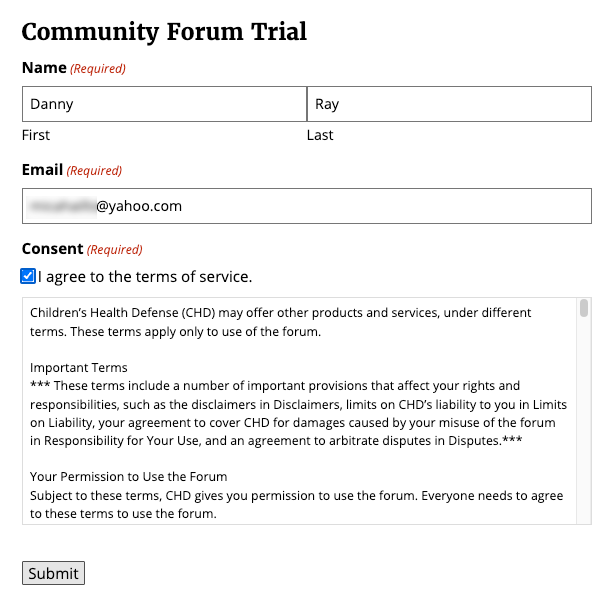
Go to the Trial Account sign up page to create your account.
- Enter your First Name, Last Name and a valid Email Address.
- Click the checkbox next to “I agree to the terms of service.”
- Click/tap the “Submit” button.
Step 2:
Complete the captcha puzzles to ensure you are a human.

Step 3:
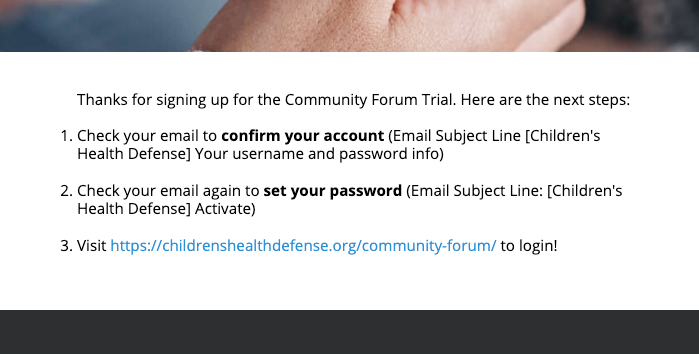
Once the captcha puzzles have been completed successfully, you will be taken to a signup confirmation page.
Step 4:
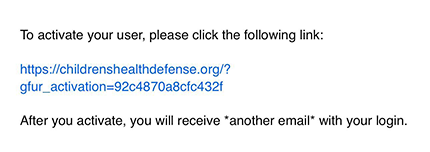
You will receive an email with a link to activate your account. Click/tap on the link.
Step 5:
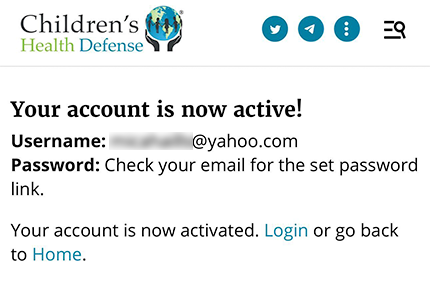
After you click on the account activation link a new browser page will open with a confirmation.
Step 6:
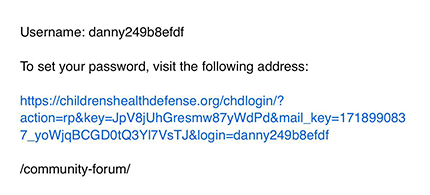
You will now receive another email with a link prompting you to set your password. Click on the link.
Step 7:
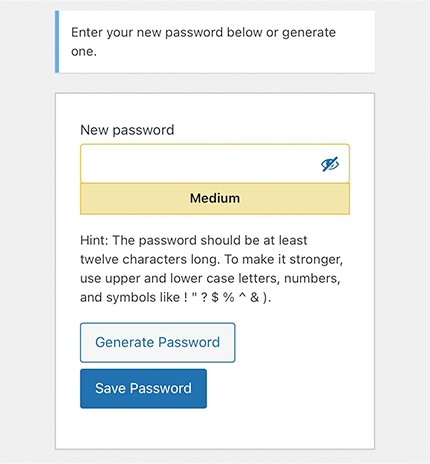
A new browser page will load with a form to allow you to type in the password of your choosing. Once you have typed in your password, click the “Save Password” button.
Step 8:
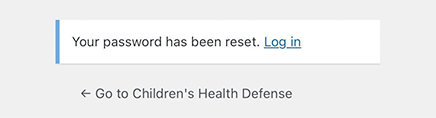
You will now see a confirmation that your password has been reset. You can click on the “Login” link to login to the Community Forum.
Step 9:
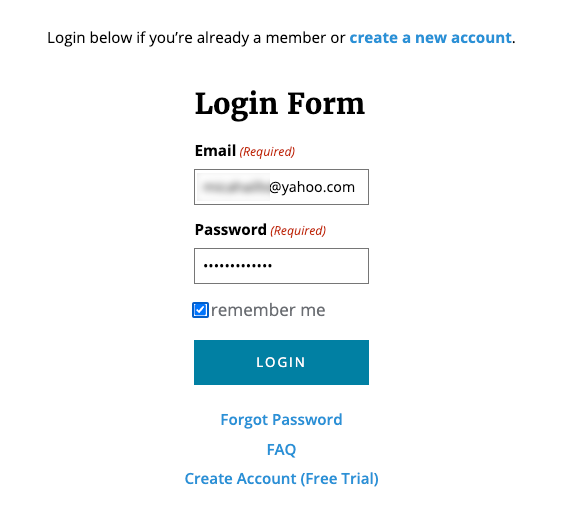
Enter your email address and password to login. You can also click the checkbox next to “Remember me” to save your login. Click the “Login” button.
Step 10:
After sign in you will see your first notification message in the top right corner.
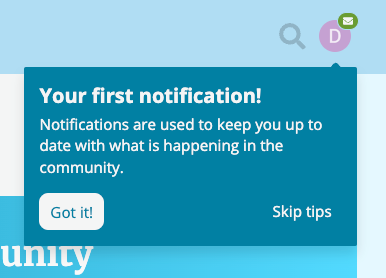

You have now completed the sign up process and can start participating in the Community Forum!
Continue reading below if you would like to change your username, display name, profile picture and add a short bio (about me). If you want to get started reading and posting in the forum you can update your account information anytime.
Update/Change Your Account Information
You can click on the profile icon to access your preferences to change your username, name, profile picture and add a short bio (about me).
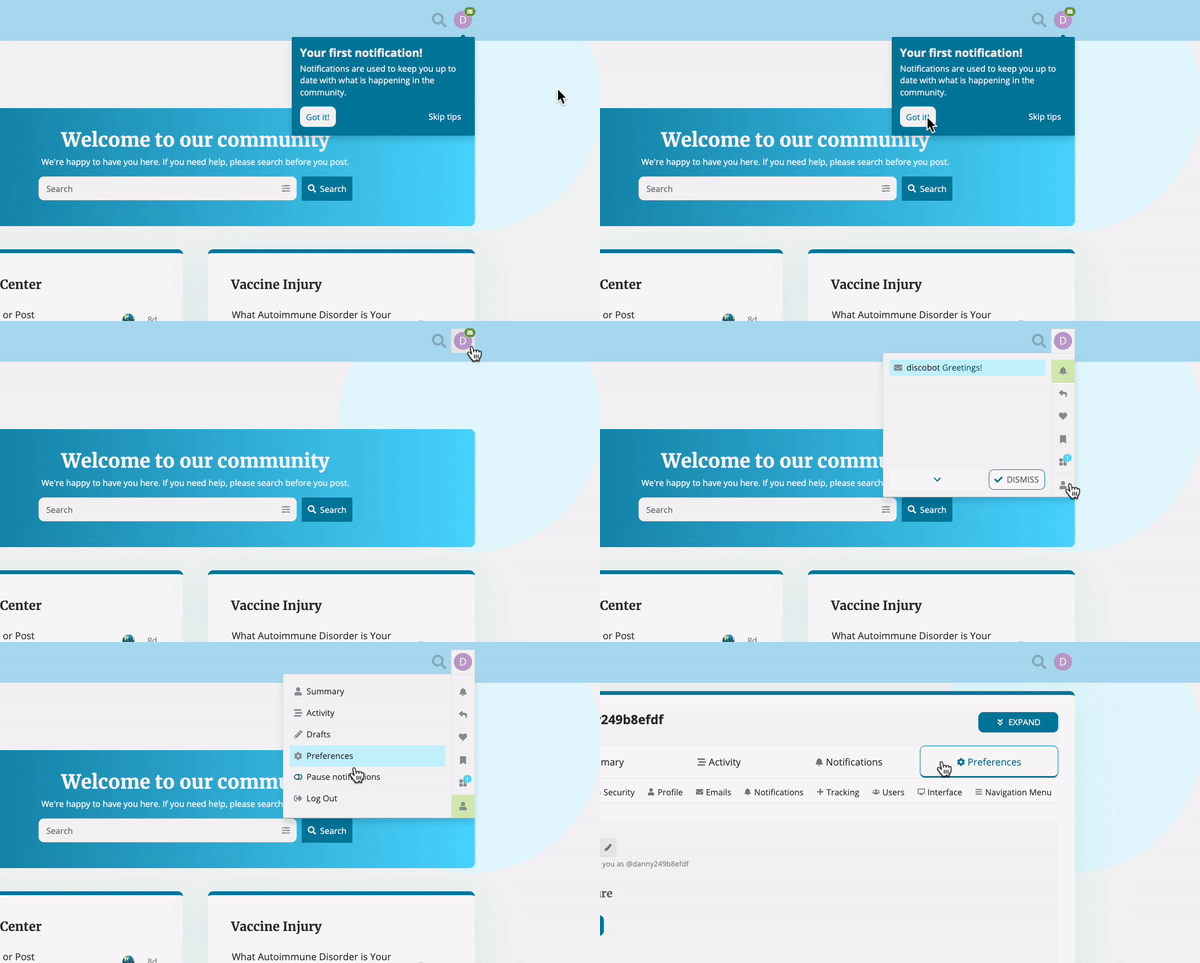
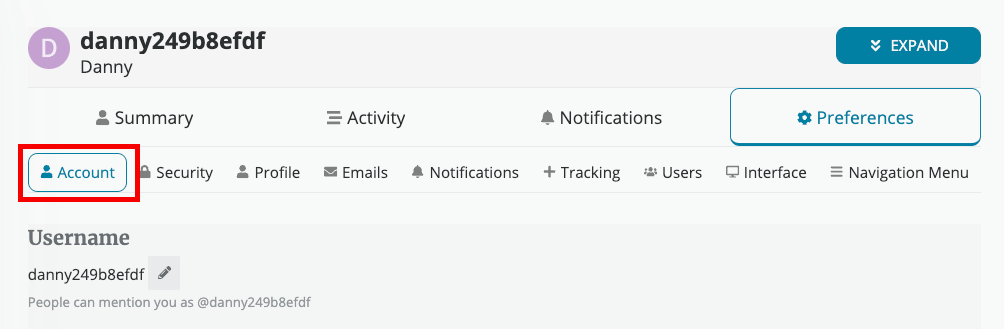
When the “Preferences” page opens it automatically opens to the “Account” settings.
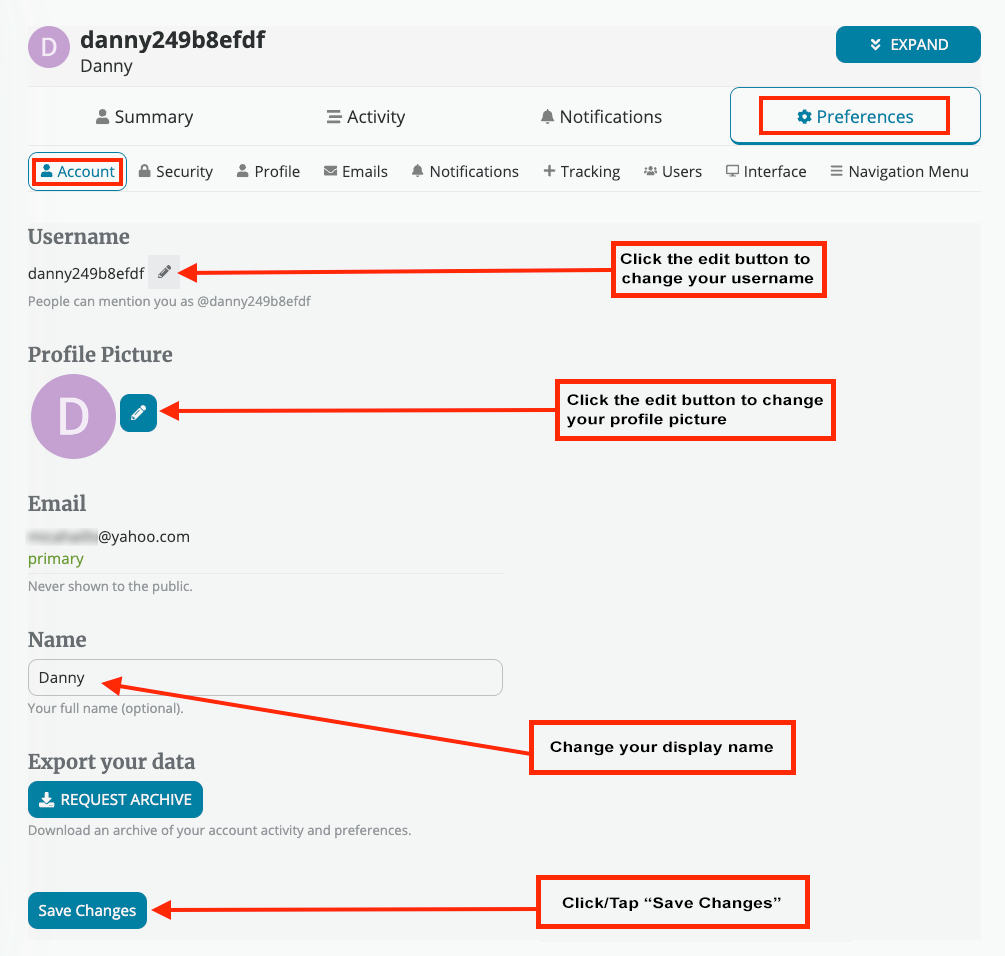
You can update/change your “Username“, Add a new Profile Picture and change your Display name. Make sure to click/tap the “Save Changes” button once you have updated the information.
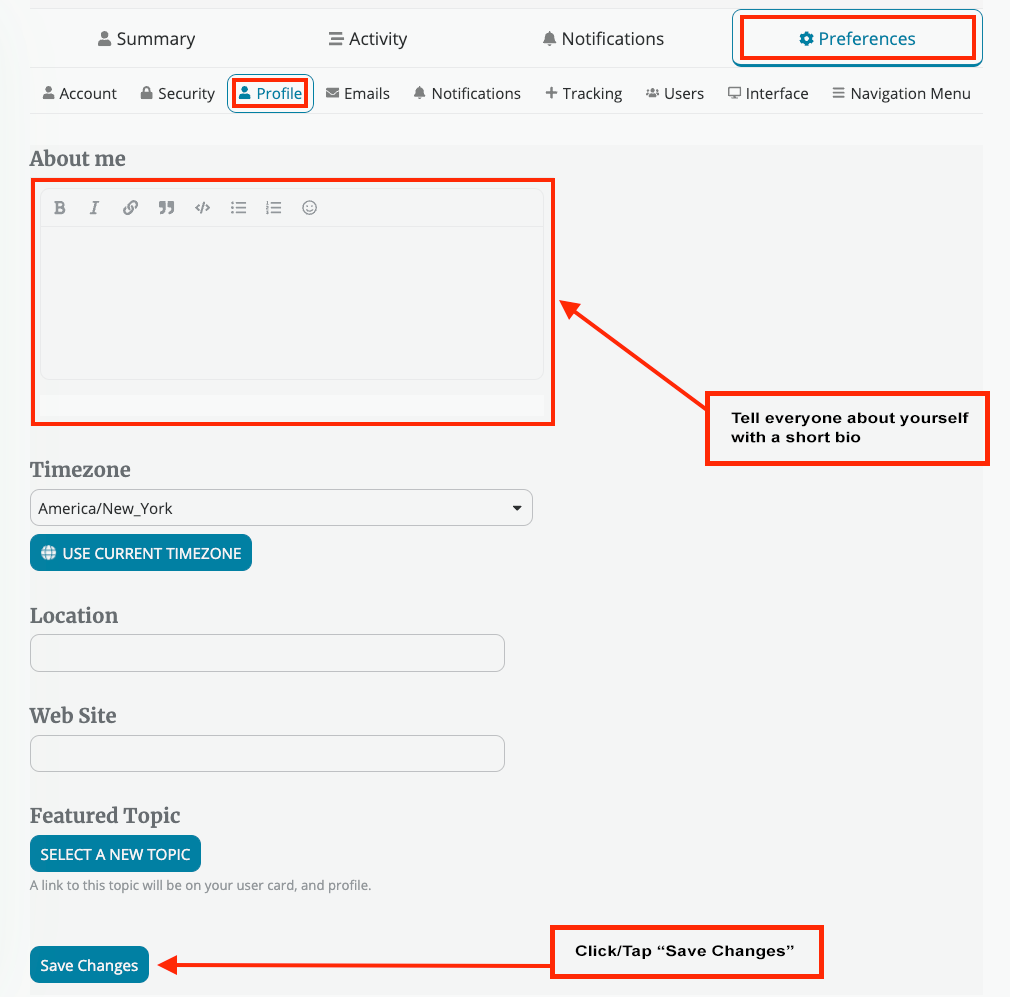
In the sub menu, click on the “Profile” button to add a short bio or “About” info. Make sure to click/tap the “Save Changes” button once you have updated the information.
Once you have completed updating your account information you can also view these helpful resources:
- Community Forum Guidelines
- Community Forum Introduction Guide
- Creating a new topic
- Edit a topic
- Community Forum FAQ